- About this manual
- Login
- Menu
-
File list
- File list
- Upload files
- Preview
- Shortcuts and Right-Click
-
File Distribution
- About Email text
- About security settings
- Send from own mailer
- Email to Receiving (collecting) and distribution
- About Email text of the Email to collect and distribute
- About security settings of the Email to collect files and distribute files
- Notification of file and collection Email send from own mailer
- Check on how many people the file was sent
- Group sharing folder function
- Folder publication
- Display thumbnail image function
- Receive (collect)
- Gathering(※Option)
- Mail standby
- Address book
- Approval list(※Option)
- History
- Settings
- Profile
- Support
- Help
- Download files
- Upload files
Approval list(※Option)
Approval function is an option.
Approval function is that: when you send Email to inform file distribution(including mailer), distribution and collection(including mailer), folder publication(including mailer), if your leader or superior approve your Email, the Email will be sent. If your leader or superior reject your operation, the Email will not be sent. When you use mailer, only the URL that is approved by your leader or superior is valid.
Please click “Menu: Approval list”.

Applicant Functions (User Side)
Request List
The Request List allows you to filter requests by status (Pending, Processing, Completed, Rejected, or Cancelled), or view all statuses together in a consolidated list.
The combined total of "Pending" and "Processing" requests is displayed next to the "Request".
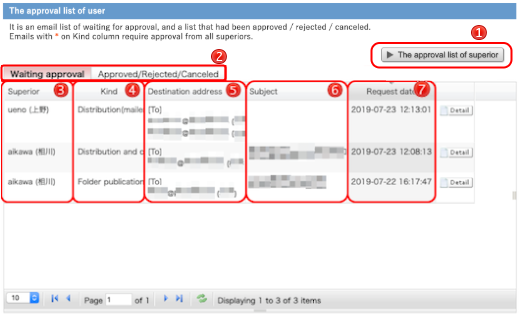
The following is a sample image of the "Pending" list.
 [Approval] [Approval] |
If you are the superior of someone, this button appears. Click this button, you can see the approval list.(→Approval list) |
|---|---|
 State State |
Select a status (Pending, Processing, Completed, Rejected, Cancelled, or All) to switch the view of the request list. |
 Superior Superior |
This is your superior whom you select when you sent Email. |
 Type Type |
This is a type of how to send your notification. |
 Destination Destination |
This is a destination address of Email. |
 Subject Subject |
This is a subject of Email. (If you sent Email from your own mailer, will not be displayed here.) |
 Requested at Requested at |
This is a request date to approve Email for your leader or superior. |
 |
When you click this button, details of the Email will appear.(→Details screen) |
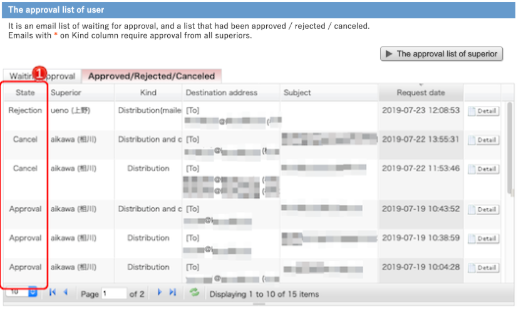
The following image shows a list of all statuses displayed together.
| State |
Indicates the status (Pending, Processing, Completed, Rejected, or Cancelled). |
|---|
| The items for displaying list | |
|---|---|
 |
Set how many rows are displayed in a page. |
 |
Move to the first page. |
 |
Move to the previous page. |
 |
Move to the page you enter. |
 |
Move to the next page. |
 |
Move to the last page. |
 |
Update the list. |
Approved/Rejected/Canceled notice
Emails requiring approval will be sent after approval by superiors.
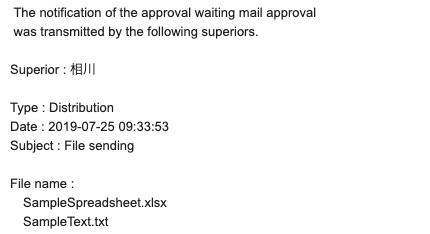
When the Email approved and sent, the user get the information by Email.
- The approved Email by the superior
If the superior reject your Email to inform file distribution, the Email will not be sent.
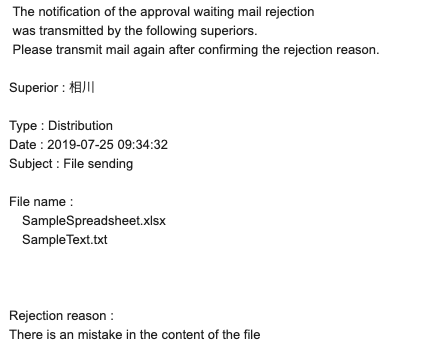
And, when your Email is rejected, the system will send you Email to inform about that. In the Email, the reason why the Email was rejected, please read the massage.
- The rejected Email by the superior
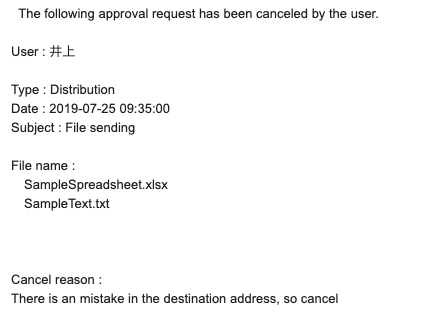
You can cancel the approval request until your superior approves or rejects it. In this case, notification emails will not be delivered.
And, when your Email is canceled, the system will send your superior Email to inform about that. In the Email, the reason why the Email was canceled.
- The canceled Email to the superior
Approver Functions (Superior Side)
Approval List
If you are the superior of someone, you can check the status of requests assigned to you (Pending, Processing, Completed, Rejected, and Cancelled) or view all requests at once.
The number of "Pending" requests is displayed next to the "Approval"
The following is a sample image of the "Pending" list.
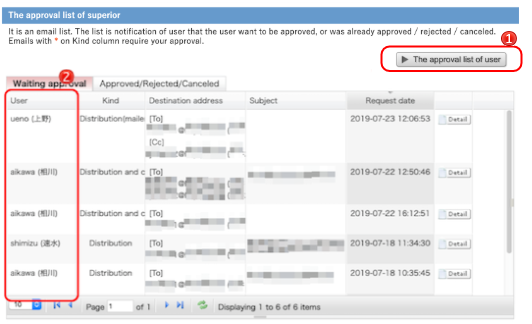
| [Approval] |
If you have a superior, this button appears. Click this button, you can see the approval list.(→Approval list) |
|---|---|
| Requester |
The name of the user who submitted the request is displayed. |
Details screen
On the detail screen, you can check the content of Email to inform file distribution.
Display items vary depending on the type of approval request.
When the status is "Pending," the superior can approve or reject the request, while the requester can cancel it.
For requests with "Processing," "Completed," "Rejected," or "Cancelled" status, you can view the details of the processed request.
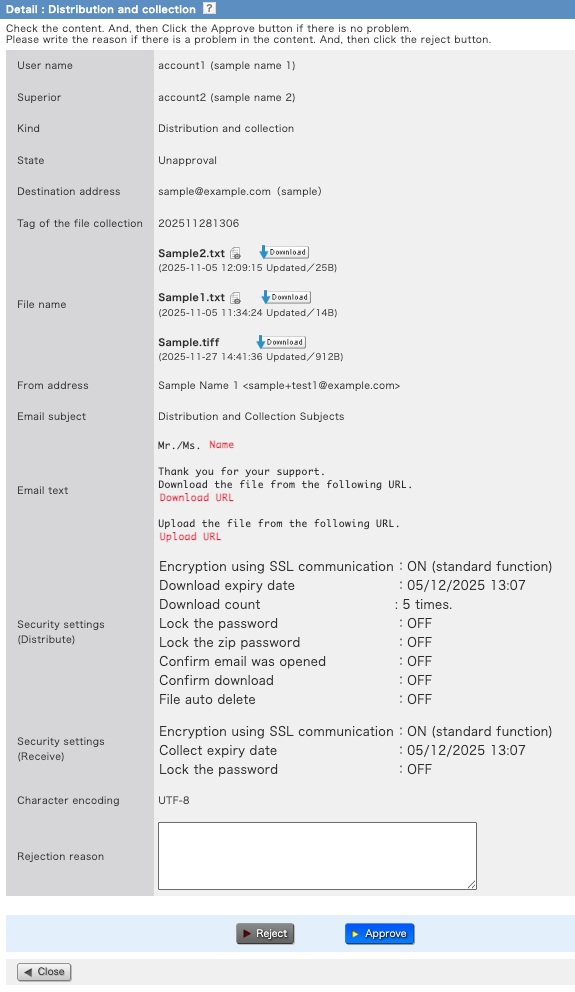
| User name | In the case of superior, the name of the user waiting for approval is displayed. In the case of user, this field is not displayed. |
|---|---|
| Superior | The name and status of the specified superiors are displayed. |
| Kind | This is a kind of how to send your notification. |
| State | Displays one of the following statuses: Pending, Processing, Completed, Rejected, or Cancelled. |
| Destination address | This is a destination address of Email. If the destination address of Email is prohibited by domain limited after registration, it is displayed in red. 
|
| Save folder | Save folder for collect files. It appears receipt when only. |
| Tag of the file collection | You can manage the Email to collect files with tags. It appears receipt when only. |
| File name |
The file distributed and the files in the publication folder.
Click the preview icon  to preview thefile. to preview thefile. |
| From address | Notification is the e-mail sender. |
| Email subject | This is a subject of Email. (If you sent Email from your own mailer, will not be displayed here.) |
| Email text | This is a text of Email. (If you sent Email from your own mailer, will not be displayed here.) |
| Security settings | They are security settings about this Email. |
| Character encoding | It is set-up character encoding of e-mail. |
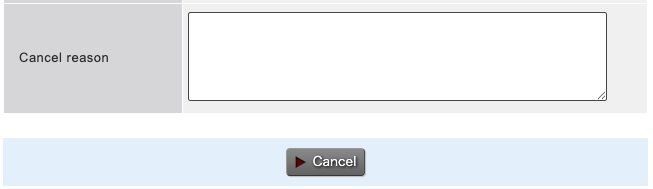
| Rejection / Cancel reason (only rejected / canceled) |
This is used to reject / cancel. |
If you want to reject the Email, please enter the reason why this Email is rejected and click the [Reject] button. If you want to approve the Email, please click the [Approve] button.
If you want to cancel the Email, please enter the reason why this Email is canceled and click the [Cancel] button.
- When the distribution file check function is enabled
-
To approve the distribution request, the approver must confirm all distributed files.
※This function does not apply to folder publishing.
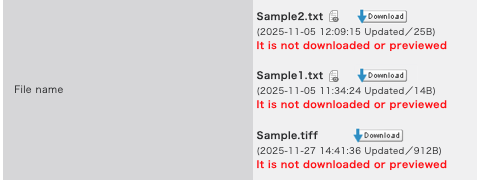
If "It is not downloaded." is displayed:
To approve, you must download all distributed files.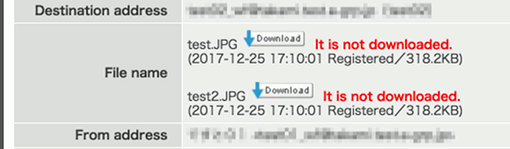
If "It is not downloaded or previewed" is displayed:
To approve, you must download or preview all distributed files.